Select Version of EA Desktop:
The Catalog module is for adding products and linking to a seismic record in Exploration Archives.
-
Enhancements to Smart Parse to aid with Machine Learning (ML).
-
Added a Catalog Status Lock for multiple users
-
Added Export to Shape File
-
Updated the logic for Catalog duplicate check.
-
Improved File and Media grid filters to allow multi-select of sub-filtered Seismic list.
-
Improved the “Create import template” tool such that the resulting Excel file now includes pick-lists.
-
Updated “Smart Parse” and added “Link to Survey Name” option.
-
Added a tool to assist with replacing of a file that requires re-delivery (also available in the File module).
-
Added an Open Selected menu option to the file grid to allow opening of selected files in production.
-
Added a rule to the catalog workflow to prevent upload of items on an open data request.
-
Added a tool to allow the removing of production media.
-
Updated the import tool to allow the import of Parent-Child file links.
-
Updated the View Original Seismic tool so that the Seismic Search grid is now auto selected.
Use the Catalog module to:
-
Add files and media
-
Add associated information
-
Create bi-directional links between files, media and seismic
-
Enter the metadata and potentially move the files to various media.
The Catalog module is configured to fit your company's specific cataloging workflows.
The Catalog module is setup to accommodate two catalog types:
- New Item Catalog is for new data
- Remediation Catalog is for data remediation
The overall features and functionality in the Catalog module are the same for both Catalog types. However, each type has unique statuses according to your company's workflows.
To create a new catalog session, refer to Create a new catalog session.
To open an existing catalog session, perform a catalog search from the Workflows section of the navigation panel.
To search the full repository of catalog records, click search and select Catalog Search. The Search Catalog Records window opens. Enter search criteria and click Search. The search results open in the view mode of the Catalog module.
Click search next to Catalog and point to either New Item Catalog or Remediation Catalog. Select the status of the catalog record and the results open in the view mode of the Catalog module. To learn about the view mode, see Catalog view.
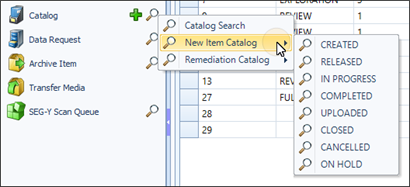
The statuses, required fields and user roles are configured according to the different steps of each workflow. If you split your workflow into statuses, it will provide the framework for tagging required fields and setting custom user permissions.
The catalog session progresses through the statuses as defined for your company.
Typical statuses for a New Item Catalog session include:
- Created: New catalog session is ready for entering information and adding files and media.
- Released: Information has been added and items are ready for cataloging.
- In-progress: Catalog session has been accepted and activities are in progress.
- Completed: Catalog session is ready for quality control review.
- Uploaded: Files are ready to be moved to media and synchronized.
- Closed: Files have been synchronized and moved to production.
- Cancelled: Catalog Session has been cancelled.
- On Hold: Catalog Session has been placed on hold.